
Adding Complex Impedance Support to Asterisk for an X100P FXO Card

First off – not all X100P clone cards are equal. If your card is NOT based in the Silicon Labs Si3014/Si3034 DAA, stop reading now, you’re wasting your time. I have an X100P SE from X100P.com, which is based on the required DAA, so I know mine can be set for complex impedance.

Right, a bit of background. I built my Asterisk server on an old VIA C3 EPIA board (Actually, a Wyse 9450 Winterminal) using Astlinux, as it’s one of the only Asterisk appliance distros that supports the Via C3 platform. I added an X100P card in order to receive incoming calls over copper, and to route outgoing local calls. I live in New Zealand, where our phone system requires complex AC termination impedance, so the standard modes offered by the DAHDI wcfxo kernel module, namely FCC and CTR21 were not optimal, as both modes only implement an AC termination impedance of 600Ω. It took a long time juggling tx and rx gains, and much playing with the echo canceller, before I got things acceptable. It’s not fun.

I knew that my card could support complex impedance from some documentation found on the suppliers website (novavox-x100p-se-global-line-standards), however, the patchfile that the documentation links to is long gone. Fortunately, the TBR21 patch for the wcfxo kernel module is well documented on the Digium website, and thus I was able to figure out what to do. As it turns out, it’s a really simple patch for the DAHDI wcfxo.c source file, as follows:

======================================
--- dahdi-linux-2.6.1/drivers/dahdi/wcfxo.c.orig 2012-10-13 09:35:10.000000000 -0500
+++ dahdi-linux-2.6.1/drivers/dahdi/wcfxo.c 2012-10-13 09:35:18.000000000 -0500
@@ -239,6 +239,13 @@
{ "CTR21", 0, 0, 3, 0, 0, 3, 0 }, /* Austria, Belgium, Denmark, Finland, France, Germany,
   Greece, Iceland, Ireland, Italy, Luxembourg, Netherlands,
   Norway, Portugal, Spain, Sweden, Switzerland, and UK */
+ { "TBR21", 0, 1, 3, 0, 0, 3, 0 }, /* CTR21 with complex impedance */
+ { "JATE", 0, 0, 1, 0, 0, 0, 0 }, /* Brazil, China, Egypt, Japan, Jordan, Kazakhstan, Malaysia,
+    Oman, Pakistan, Philipines, Russia, Syria, Taiwan, Thailand */
+ { "AUST", 1, 1, 1, 0, 0, 0, 0 }, /* Australia */
+ { "NZWL", 0, 1, 2, 0, 0, 0, 0 }, /* New Zealand */
+ { "PLSV", 0, 0, 2, 1, 1, 0, 0 }, /* Poland, Slovenia */
+ { "SAFR", 1, 0, 2, 1, 0, 0, 0 }, /* South Africa */
};
static inline void wcfxo_transmitprep(struct wcfxo *wc, unsigned char ints)
======================================

This gives six extra operating modes to the module. The required operating mode is passed to the module when loaded, like so:

# modprobe wcfxo opermode=x

where x is an integer that maps to the opermode as follows:

0 – FCC Mode
1 – CTR Mode
2 – TBR21 Mode
3 – JATE Mode
4 – AUST Mode
5 – NZWL Mode
6 – PLSV Mode
7 – SAFR Mode

You can see which mode is appropriate for which country from the comments contained in the patch. In Astlinux, the opermode for NZWL (New Zealand) is set in /etc/modprobe.d/options.conf as follows:

options wcfxo opermode=5

Now, having to crosscompile Astlinux for a Via C3 on a RedHat VM on my OS X box was going to be a pain. Luckily, Lonnie Abelbeck from the Astlinux project showed some interest in this patch, and very kindly compiled it for me. Hopefully if all goes well (As it has so far), this patch will become permanent in future Astlinux builds.

And lastly, a shameless plug, but from the point of view of a very satisfied user, and nothing more:

If you’re looking for an easy to use Asterisk appliance distro, which supports some of the more oddball hardware out there, look no further than Astlinux
 

Hacking the Telecom Italia Aladino WiFi (AKA Samsung WIP-6000M) SIP phone

There’s no point to having an Asterisk server if there are no phones to go with it……….

I’ve got a Linksys SPA3102 which interfaces my old DECT Philips phones with my Asterisk server, but with only two handsets, it’s not really ideal.

Enter the Telecom Italia Aladino WiFi. This is a rebadged Samsung WIP-6000M, it’s a fairly old phone, around 2004 vintage, maybe even earlier, is only 802.11b, and worst of all, is locked to the Telecom Italia Alice service. However, it’s cheap (I picked up six of them for about EUR 9.00 each, excluding postage), it can be hacked, and it can have bog standard firmware flashed. Read on to find out how.

The first thing you need is the firmware, and it also helps to have some documentation. Here’s one I prepared earlier. Once you have the zip file, extract it, and then extract the firmware from aladino_fw.zip contained within it.

You will need an FTP server. Setting one up is beyond the scope of this post, please don’t ask me how, there’s just too many variables involved – Google is Your Friend! Once you have your FTP server set up, you will need to copy all of the firmware files to the root of the FTP server.

After you have your FTP server set up, you will need to prepare your WiFi router or access point. A better option is to go and buy a separate, cheap, 802.11b pure access point, that you can dedicate to phone service only. You will need to change some settings, don’t worry, you can set them back later. First, you will need to change the SSID of your access point to “Alice-12345678” (minus the quotes). Remove any encryption, and ensure any MAC filtering. You can add this back later.

Now on to the handset. You’re at a disadvantage here, if you’re not Italian, as it’s set (obviously!) to Italian. I’ve done the hard work for you, we’ll get it to a stage where we can change it to English. Switch it on buy pushing and holding down the on-hook button (the one with the red phone symbol). A spalsh screen will come up, it will play a cheesy tune, and eventually will give a display titled “Selezione Rete”, and allow you to select your “Alice-12345678” AP. Hit the OK button.when the sand timer has finished spinning, and it comes up with a display titled “Inserisci numero”, enter the number “0” and hit the OK button. More sand timer…..follwoed by an error message “Errore, riprovare”. Hit the exit button (top right smartkey), and you’ll have the display up and ready.

Now to change the language. Hit the menu smartkey, and use the cursor ring to scroll across to menu 5, “Impostazioni”. You can scroll down to item 5.6, “Lingua”, or just hit the 6 key. Hit OK, and OK again. select “English, and hit OK. You will go back to menu item 5.6.1. Hit the 2 button (Or scroll), and change the Input Mode to English as well. exit out of the menus (you will need to hit the exit key a few times).

Before we can do anything useful, we have to turn access control ON. You do this by entering the following key sequence: *#0214*1004#

Yeah, the sounds are really cheesy, aren’t they?

Now we need to enter the test menu. you do this by entering the following key sequence: *#8999*8378#

You will need to turn provisioning and firmware signing off. These settings are found in Test Mode 4.3 (Env Settings -> PROV) and 4.4 (Env Settings -> DSIGN)

Now set up the IP settings in Test Mode 6. If you are running a DHCP server, you only need to worry about setting the FTP server IP address in 6.6, otherwise also set 6.1 and 6.2.

In the upgrade menus in Test Mode 7, set the protocol in 7.3 to FTP Auto, the CNF file in 7.4 to “Upgrade.cnf” (note the uppercase “U”), your FTP server login and password in 7.7 and 7.7, and either “/” for the path in 7.8, otherwise set this to the path under your FTP root where you saved the firmware files. Now you can start the main upgrade, option 7.1. This takes a while. Go and make yourself a cup of coffee.

Once the phone has rebooted into a fresh new firmware, you will find that the Test Mode is now exposed in menu item 5.12. Set your Asterisk server IP address in 5.12.5.1 and 5.12.5.4. Set the phone number in 5.12.5.12. Set the auth username and password in 5.12.5.13 and 5.12.5.14. Exit out of the menus, and reboot the phone by removing and reinstalling the battery, and switching it on.

Congratulations. You now have a WiFi SIP handset that works with your Asterisk server.

The Wyse 9450 WinTerm – More than just a WinTerm

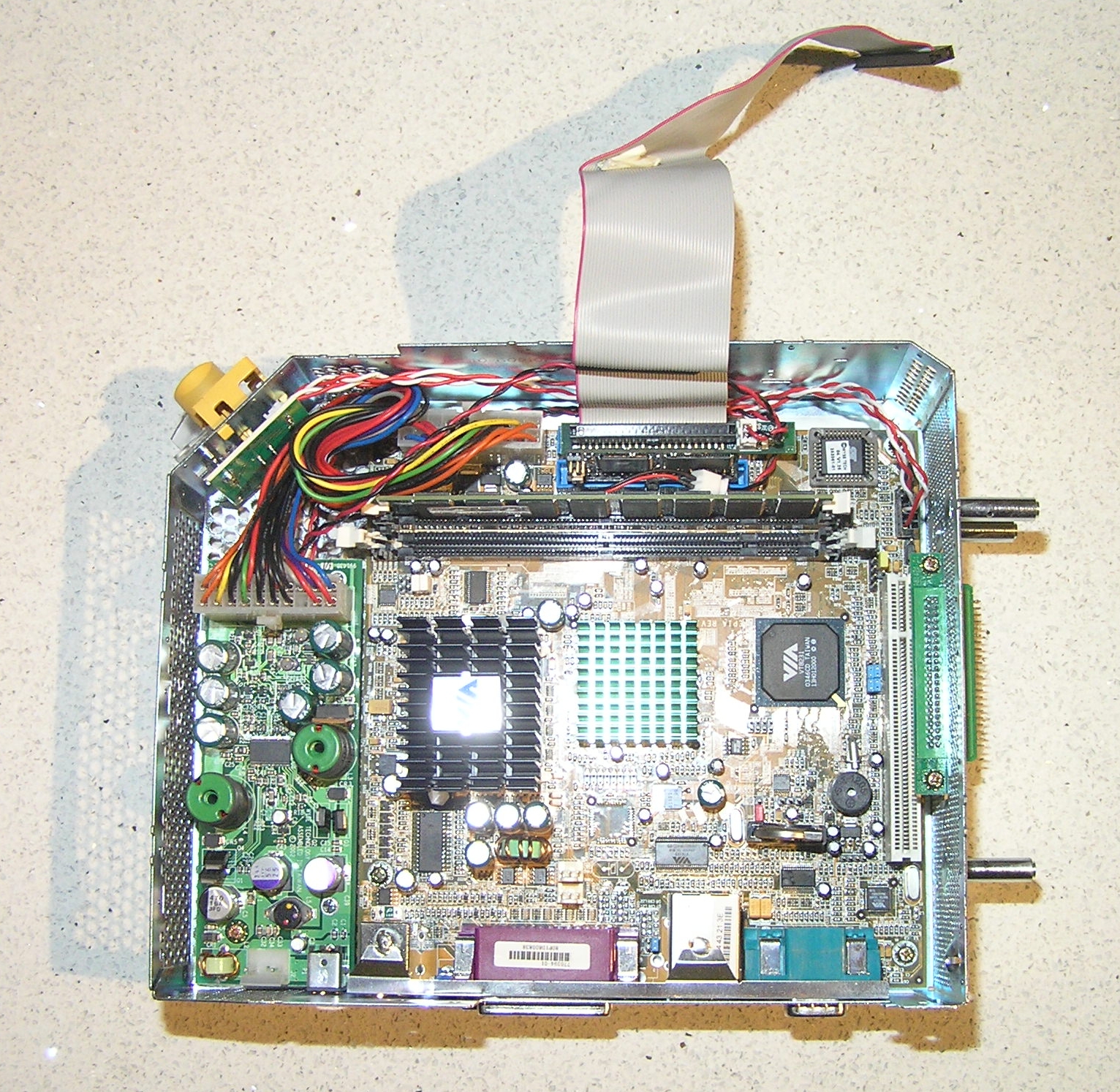
I recently had the opportunity to obtain a couple of Wyse 9450 WinTerms, including their PSUs, for the princely sum of NZD45.00 each. Now these are not some crappy WinTerm, they’re highly hackable beasts. Take off the covers, and inside you’ll find a Via EPIA mini-ITX motherboard, with Disk-on-Module(DOM).

Let’s have a look:

As you can see, it has a single PCI slot and two SDRAM slots. Now, see the jumpers just below and to the left of the memory? Those are the FSB jumpers, and as shipped, the board is set up for an FSB speed of 100MHz. Change the jumpers to the selection shown in the photo, and you up the FSB speed to 133MHz, and consequently, you up the speed of the CPU too. Don’t worry, it can handle it.

It can handle a maximum of 1GB RAM (2 X 512MB), but it’s very finicky over exactly what will work. Hi-densisty RAM will only read half the capacity. So will some lo-density RAM.

Another nice little trick this box has up its sleeve is the 44 conductor cable. This usually goes to the pin header you see on the right(Which is actually the base of the machine), and it has the requisite 5V supply on it, so you can plug in a 2.5 inch HDD, or a 44 pin to CF adapter.

So far, what I have done with one of these is made myself an Asterisk server, instaling the Astlinux C3 image on to a CF MicroDrive. I added an X100P PCI telephony card to handle inbound and call hand-off to PSTN for local calls, the rest of my calls going outbound via SIP. Next project is a Smoothwall firewall, using a four port NIC.